ExtraEmily
How to reset Chrome Notifications on Android Phones
Changed your mind about notifications? Here’s how to allow them on an Android Phone on Chrome.
1
Find the ExtraEmily App
Look for the ExtraEmily app icon on your Home Screen or App Drawer.

2
Open App Info
Press and hold the app icon until a menu appears. Tap the App Info option. This may be presented differently for your phone. In the screenshot, it’s just a circled ‘i’.

3
Uninstall the App
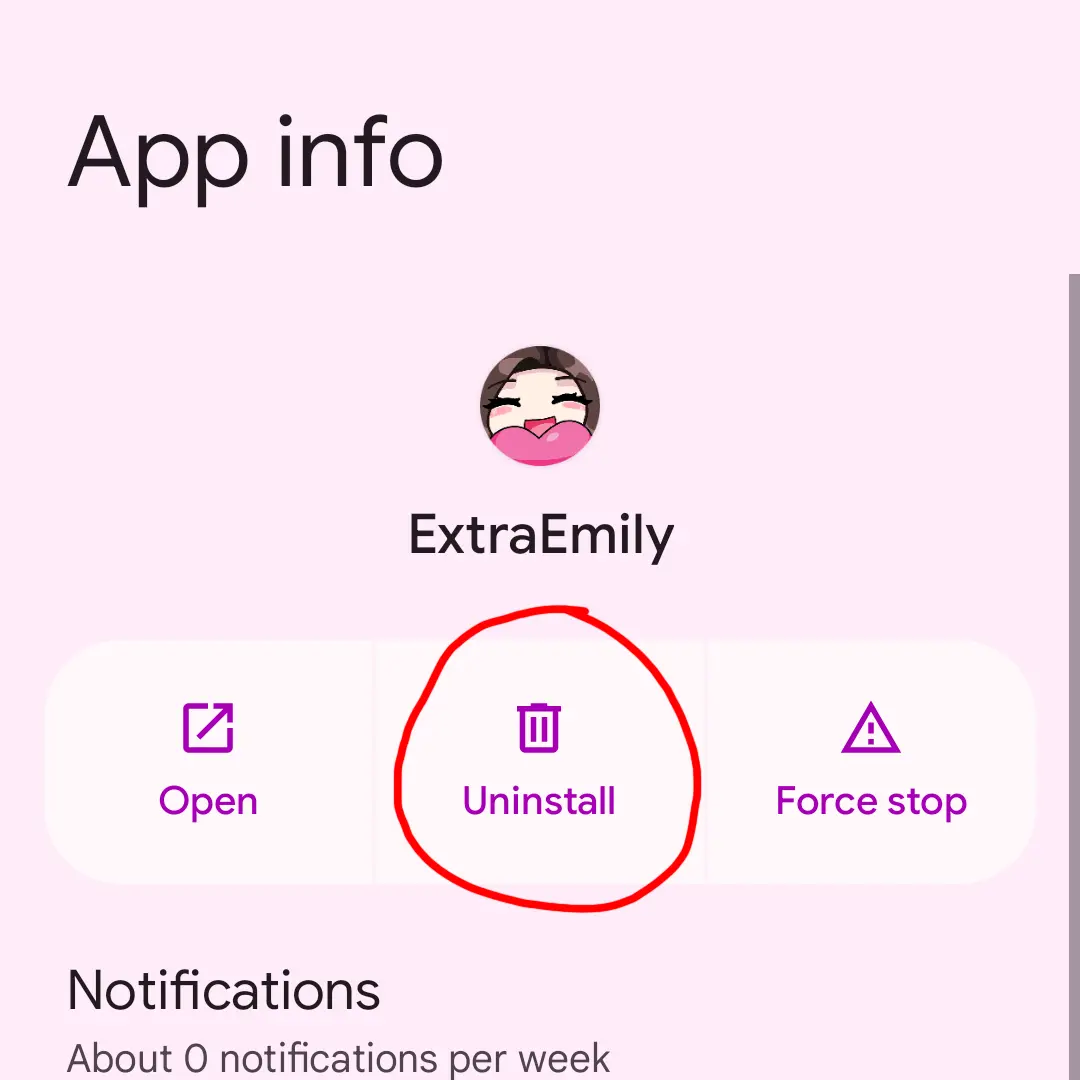
In the App info screen, tap on Uninstall and confirm with Ok. Make sure that you are uninstalling the ExtraEmily app, and not Chrome.
4
Install Web App
Open Chrome and visit https://extraemily.com. Tap Install to reinstall the web app with a clean slate.

5
Set up Notifications
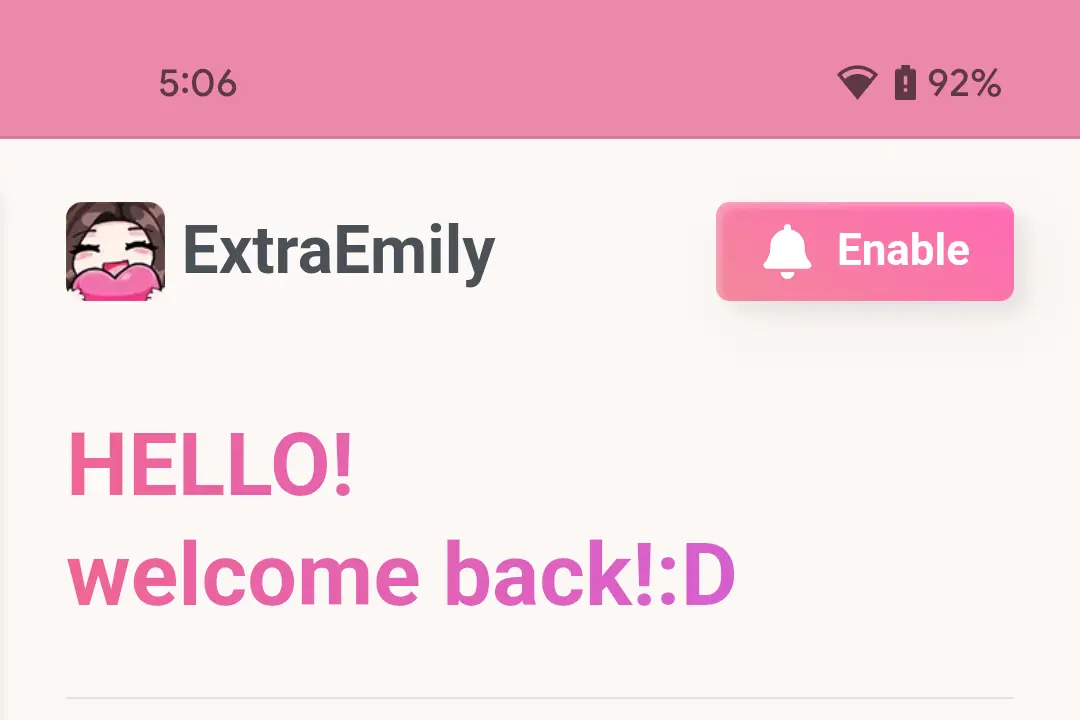
Find the app on your Homescreen and open it up. Tap Enable to start the notification process. Make sure to hit Allow this time!