ExtraEmily
How to allow Samsung Internet Notifications on Android Phones
Changed your mind about notifications? Here’s how to allow them on a Samsung Phone on the Samsung Internet browser.
Find the ExtraEmily App
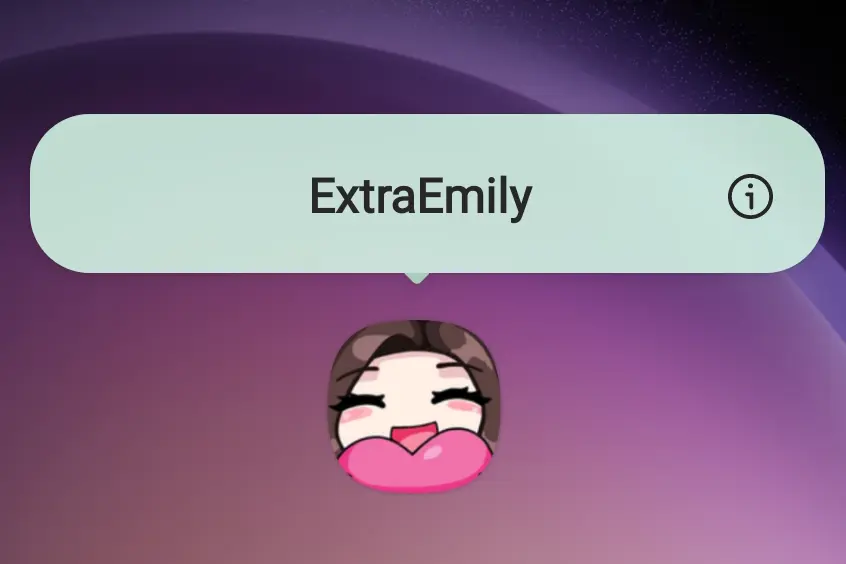
Look for the ExtraEmily app icon on your Home Screen or App Drawer.

Open App Info
Press and hold the app icon until a menu appears. Tap the App Info option. This may be presented differently for your phone. In the screenshot, it’s just a circled ‘i’.
Find Notification Option
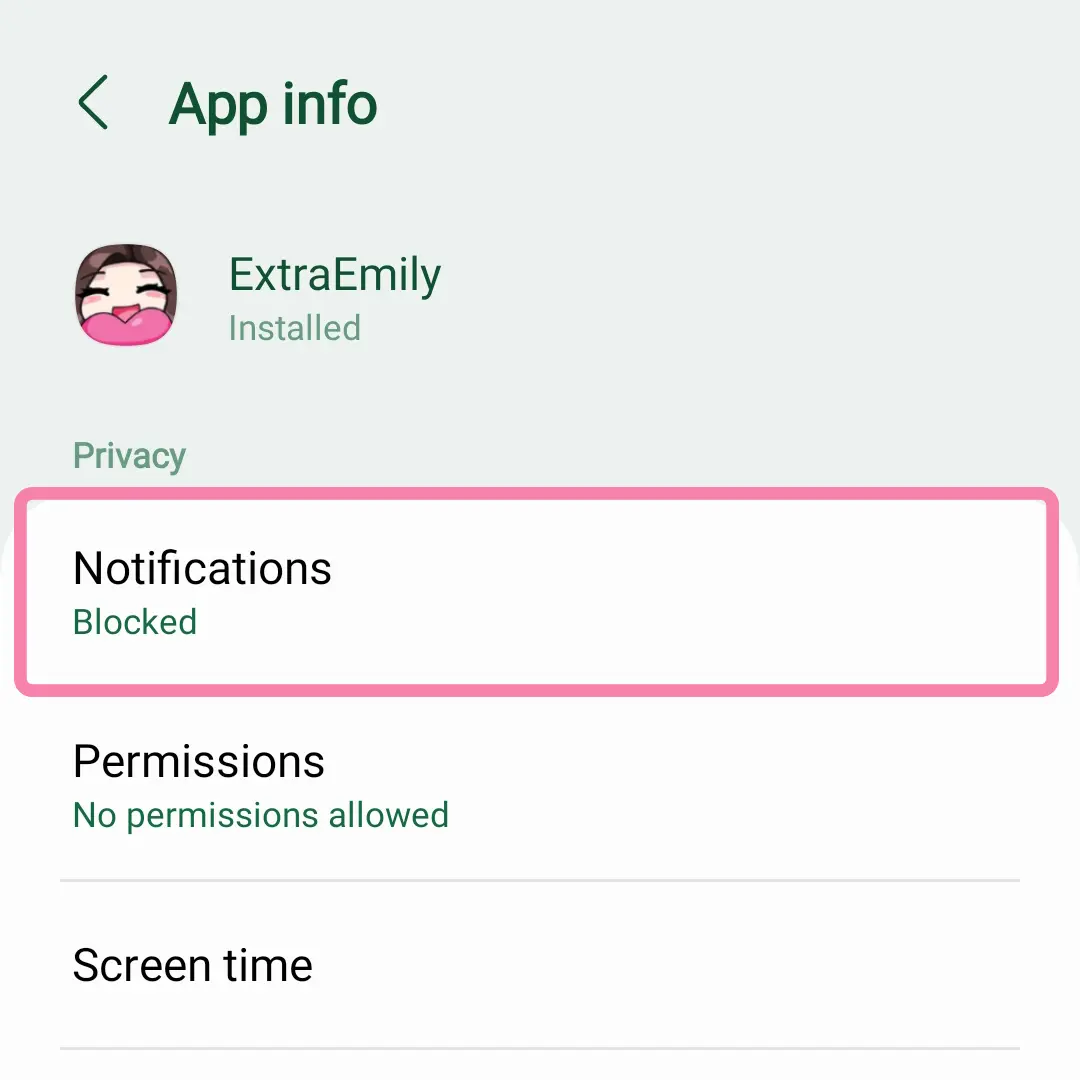
In the App info screen, tap on Notifications under Privacy.
Toggle on Notifications
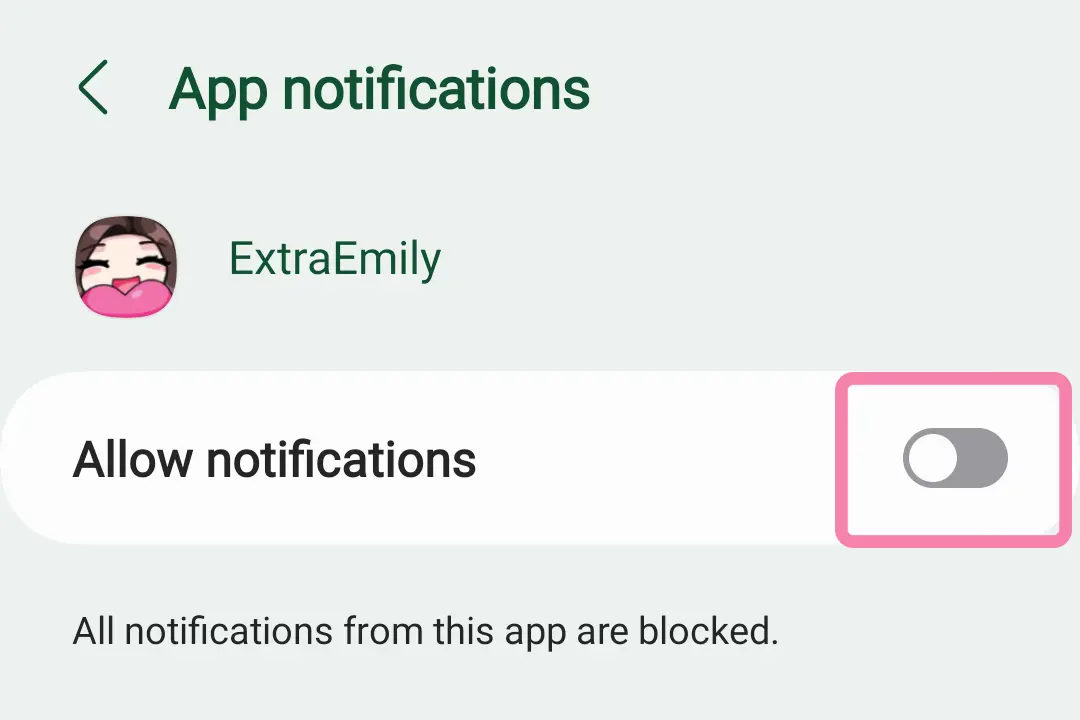
Toggle on Allow notifications.
Return back to the App
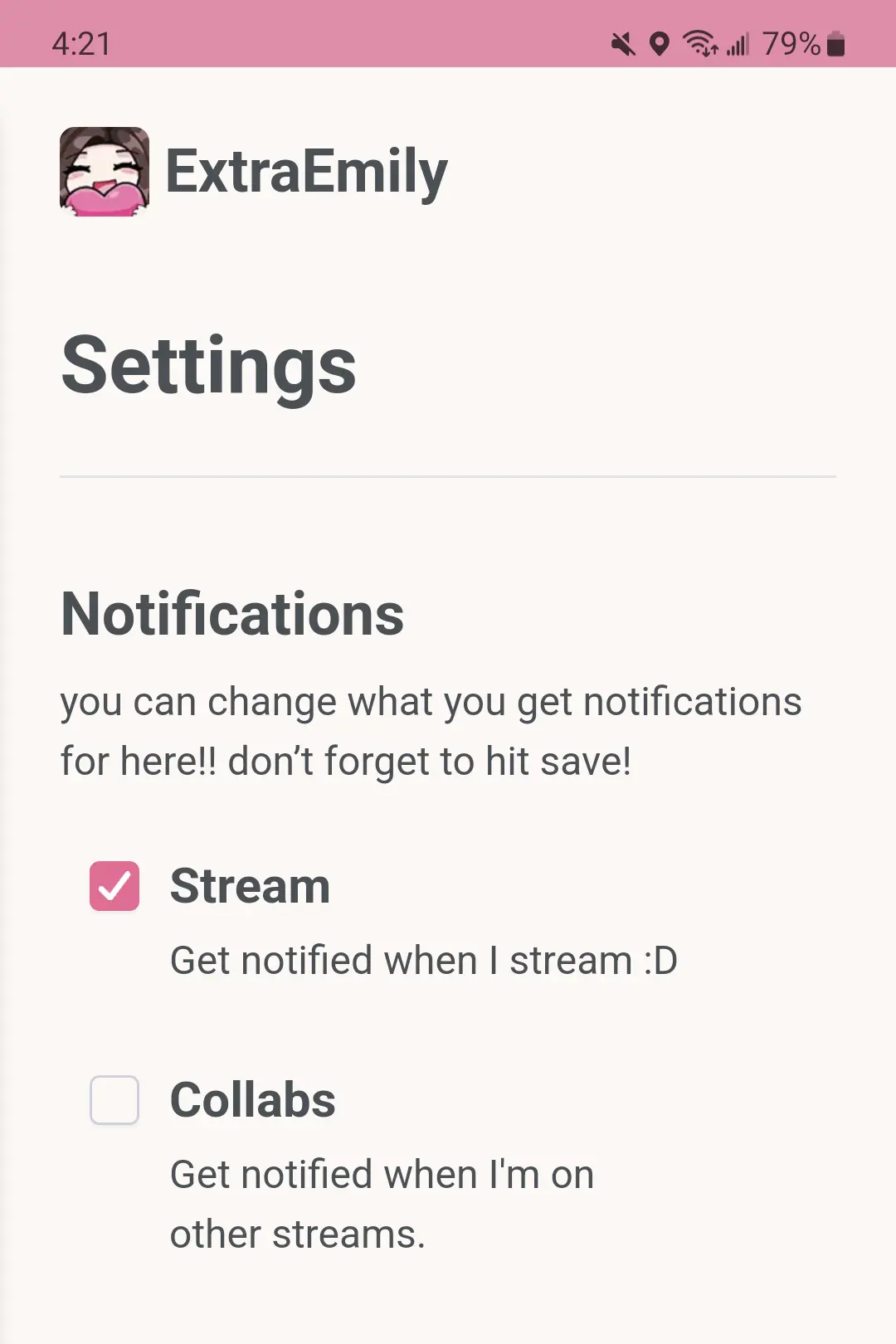
Return back to the ExtraEmily app and navigate to the Home page. Then go to the Settings page. The option to select Notification topics should now be visible.
If you do not see the option to adjust your Notifications, then restart your phone for the change to take effect.
If you see the Notification setting, try and adjust the topics and hit Save. If it succeeds, then you’ve successfully subscribed!