ExtraEmily
How to reset Chrome Notifications on Mac
Changed your mind about notifications? Here’s how to allow them on a Mac on Chrome.
1
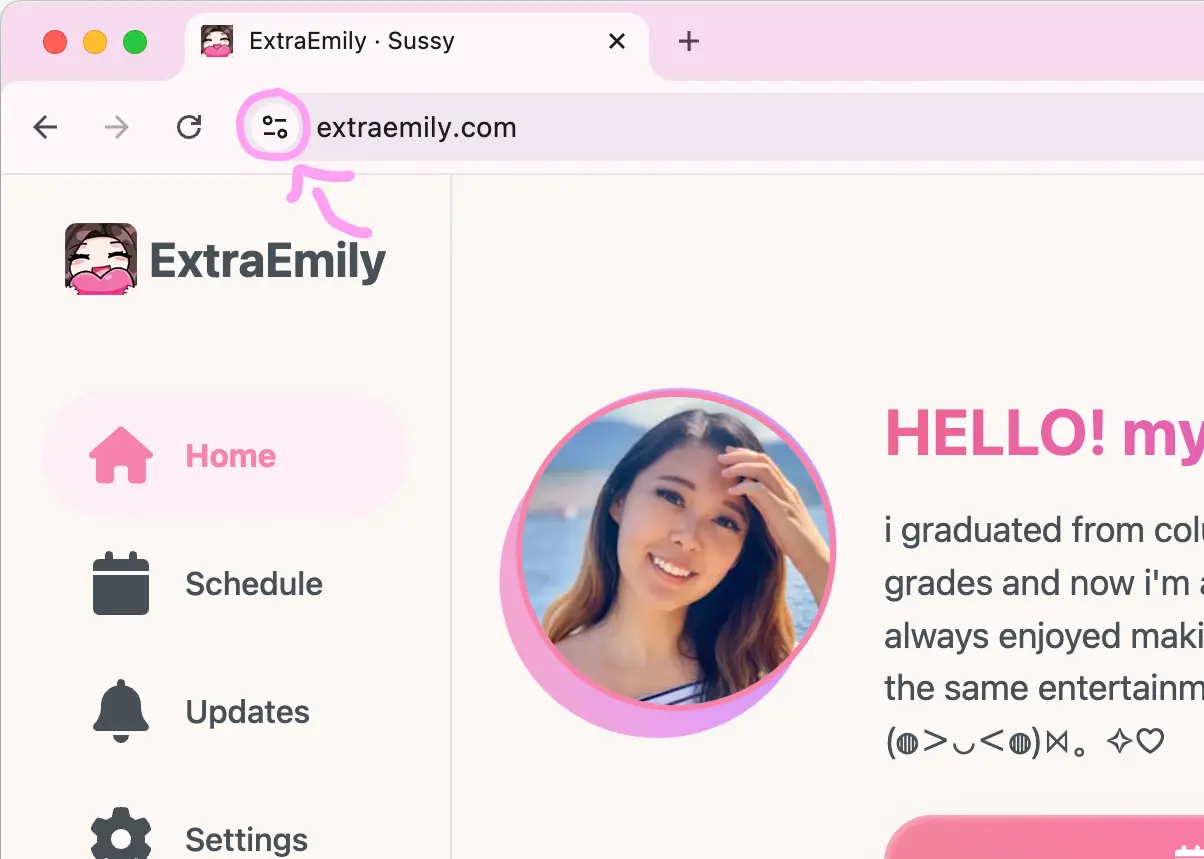
Find Site Settings Menu
Click on the Site Settings icon in the Chrome URL bar.
2
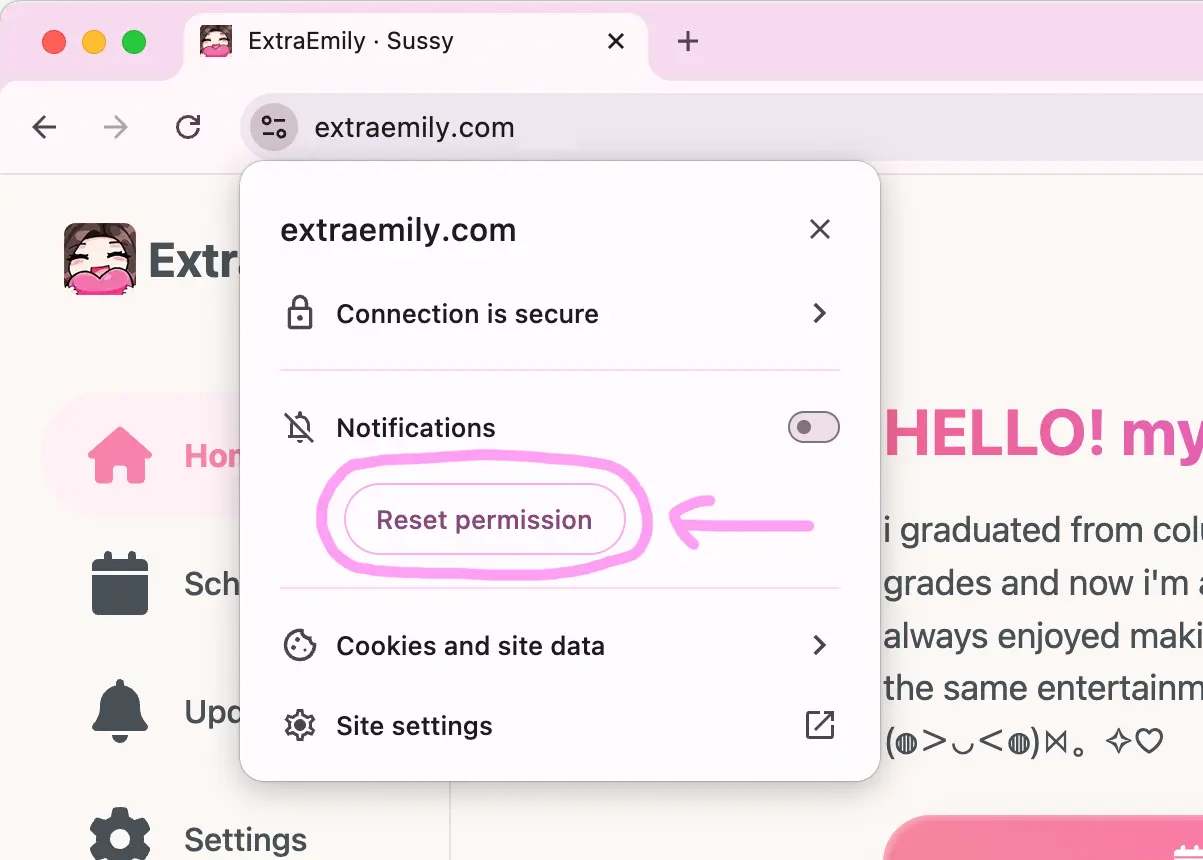
Reset Notifications
Under the Notification section, hit Reset permission.
3
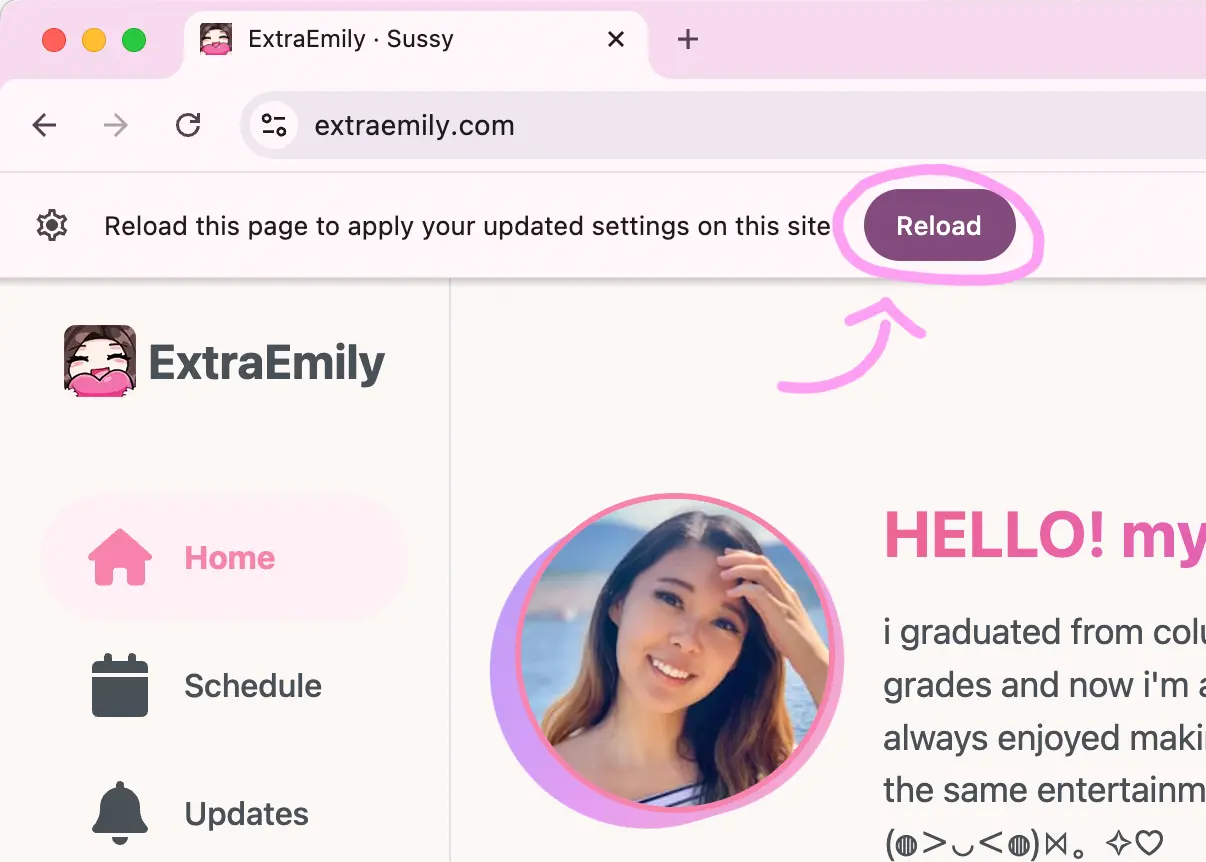
Reload the Page
Click off the site settings dialog and you should see a banner. Hit Reload.
If you don’t see the banner, just refresh the page.
4
Set up Notifications
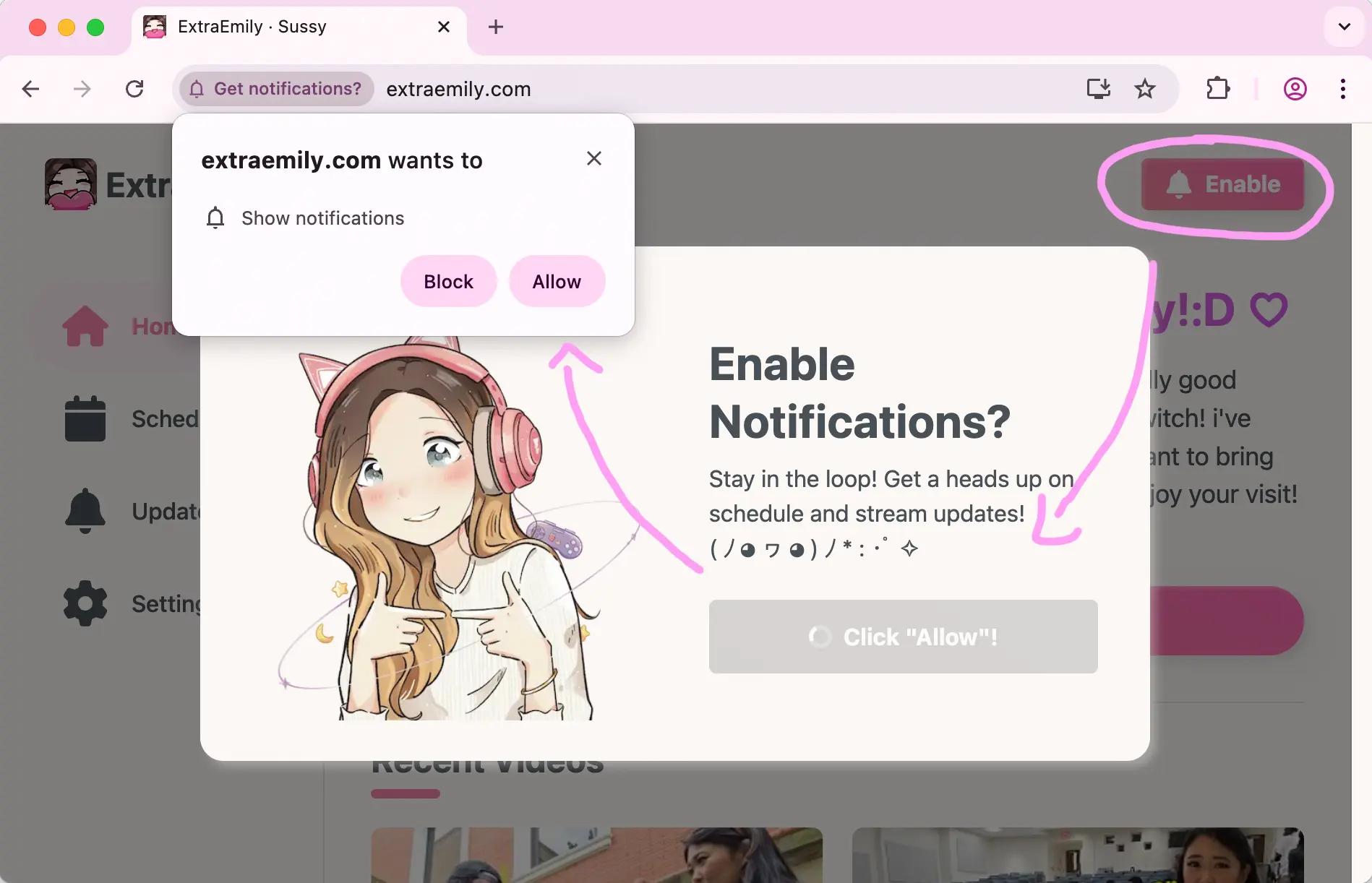
Now we should be able to start the Notification setup process again. Click Enable in the top right of the website. Make sure to hit Allow this time!