ExtraEmily
How to manually allow Edge Notifications on Windows
Changed your mind about notifications? Here’s how to allow them on a Windows PC on Edge.
Check for Prompt
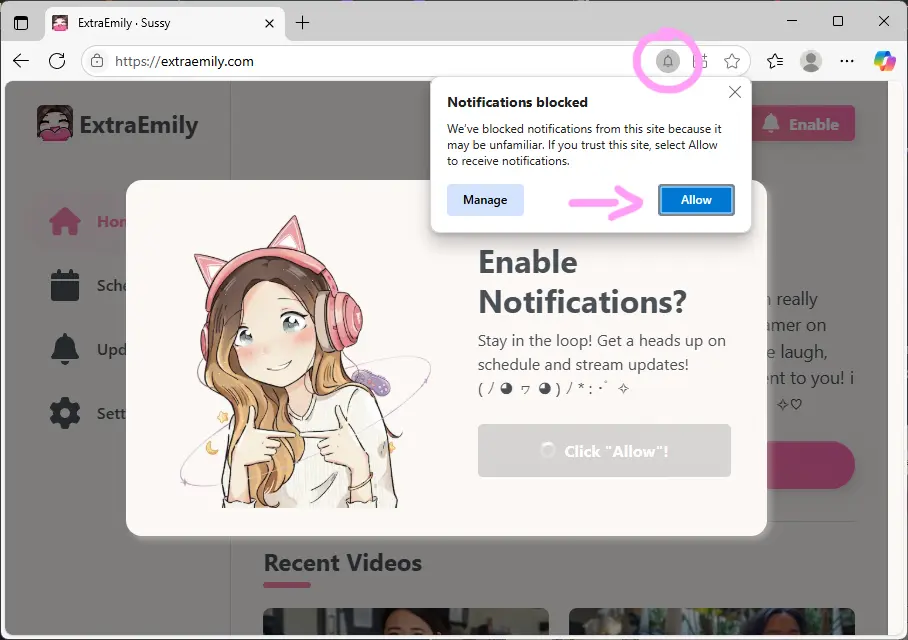
Before we attempt to manually allow notifications, it is possible that Edge isn’t showing the pop up asking if you would like to enable Notifications.
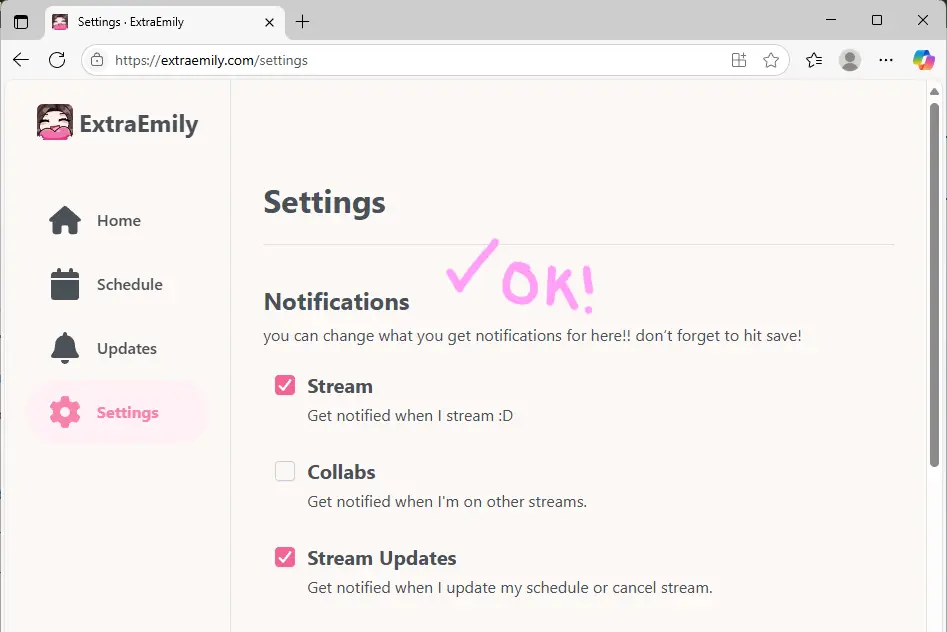
When you get to this screen, check the Edge URL bar and look for the Bell icon. You can allow Notifications here. When you visit the settings, you should see the Notifications settings.
If that works, then you’re done! Otherwise…
Find Site Settings Menu
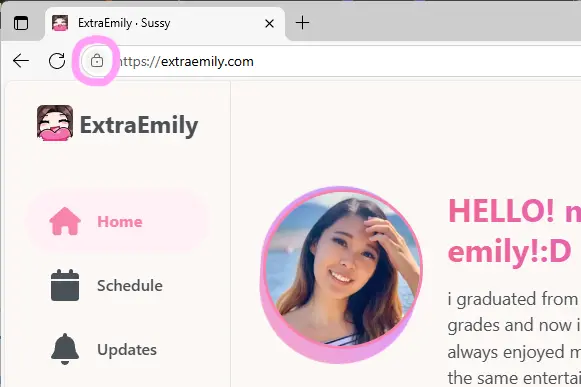
In the Edge URL bar, click the Lock icon.
Allow Notifications
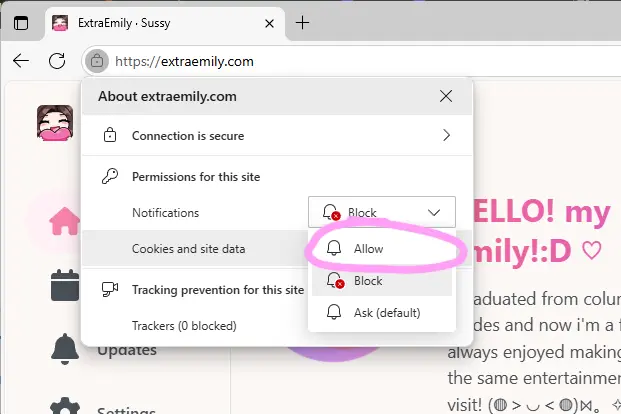
Under Permissions for this site, select Allow for the Notification drop down.
Refresh the Page
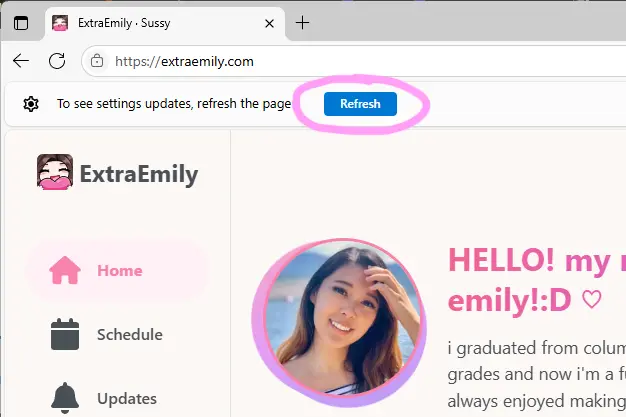
Click off the site settings dialog and you should see a banner. Hit Refresh.
If you don’t see the banner, just refresh the page.
Set up Notifications
Notifications should now be enabled! If you visit the settings page, you should see the Notifications settings. You can adjust what topics you are subscribed to.